
A good photo can capture a special moment, but a few simple edits can make it look even better. You may want to brighten a family picture, remove unwanted objects, improve a selfie, or prepare an attractive photo for Instagram. You do not always need a computer or professional editing skills to do these things. However, choosing the right app can feel confusing. Many photo editing apps advertise free editing but charge for certain features. Others focus on selfies, while some work better for landscapes, travel photos, or social media posts.
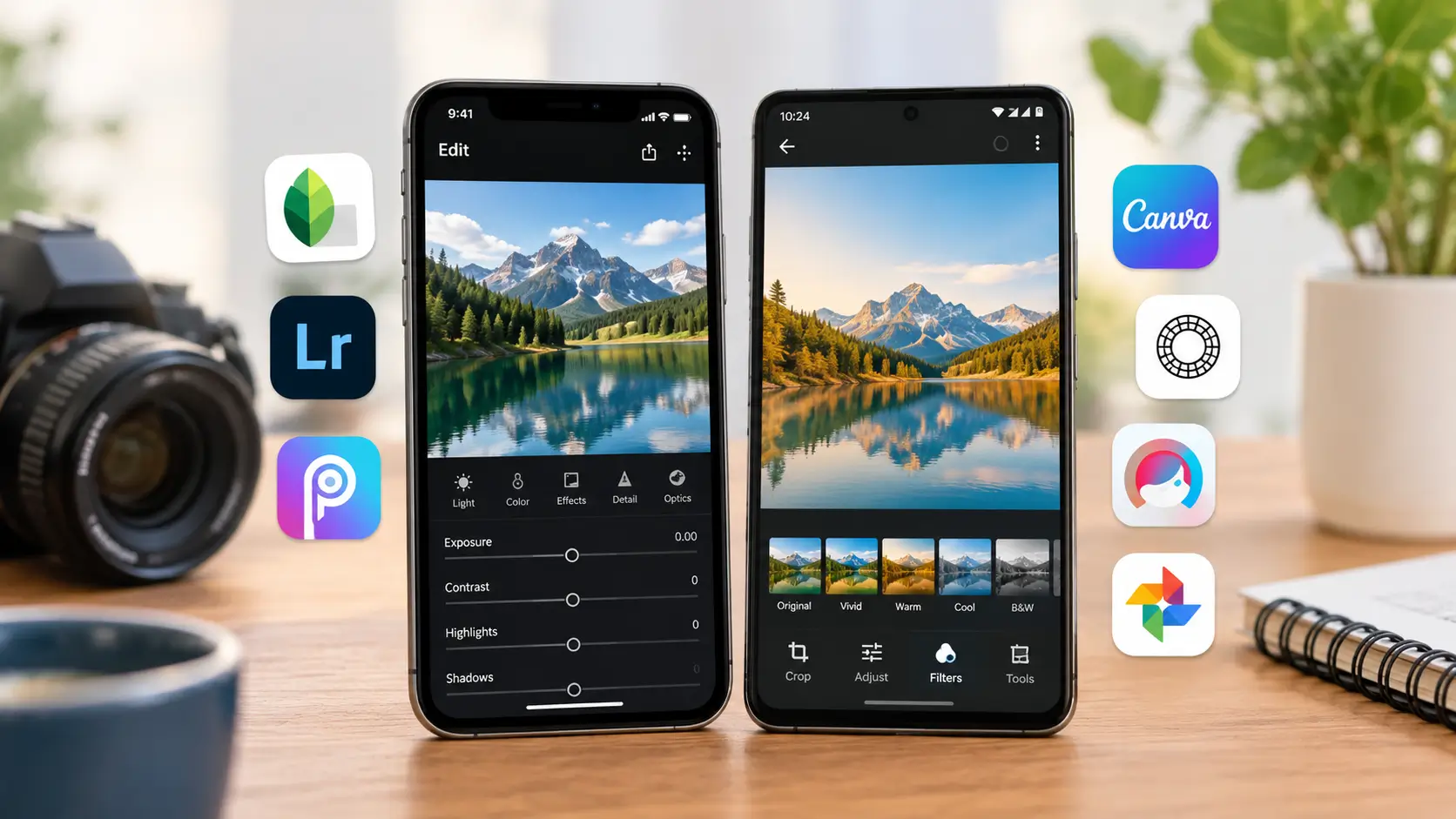
Best Photo Editing Apps for iPhone and Android at a Glance
| App | Best For | Free Usage |
| Snapseed | Everyday photo editing | Offers free editing tools |
| Adobe Lightroom | Colour correction and professional-looking photos | Free tools with optional paid features |
| Picsart | Creative edits and social media images | Free tools with paid features |
| Canva | Posts, collages and designs | Free tools with paid features |
| VSCO | Filters and aesthetic photography | Free features with paid options |
| Facetune | Selfies and portraits | Some free features; paid options available |
| Google Photos | Basic edits and photo management | Basic editing tools are available |
Free features and subscription terms can change. Check the current app listing before downloading or paying for a plan.
1. Snapseed: Best Free Photo Editing App
If you want to edit photos without paying for a subscription, Snapseed is a good option. Google has this mobile photo editing software, and it has a handy set of capabilities for regular photography. You can adjust brightness, contrast, colours, and details. The app also offers filters and selective editing tools that help you improve specific parts of a picture.
Why Should You Choose Snapseed?
Imagine you take a family photo outdoors, but the faces look too dark because the sunlight comes from behind. Snapseed can help you improve the overall brightness and adjust selected areas of the image. You can also crop a photo, straighten a tilted horizon, and remove some unwanted objects with its healing tool. These features make it useful for everyday pictures without forcing you to learn a complicated editing process. Snapseed suits beginners as well as people who already understand basic photography. Its editing options provide more control than a simple filter app.
Best for: Students, casual photographers, families, and anyone looking for a free photo editor.
2. Adobe Lightroom: Best for Colour and Light Adjustments
Adobe Lightroom is a favorite of photographers who desire more control over how their photographs look. The mobile app allows you to tweak exposure, contrast, highlights, shadows, and color. These controls can make a major difference when a photo looks too bright, too dark, or slightly dull. You can also create a consistent style across several pictures.
What Makes Lightroom Useful?
Suppose you take photos during a trip to Jaipur. One picture looks too yellow indoors, while another looks flat under cloudy skies. Lightroom gives you controls to correct the colour and light so both images look more balanced.
The app also supports presets. A preset applies a saved collection of editing adjustments to a photo. You can use one as a starting point and make further changes to suit the image. Lightroom offers free features alongside paid options. Some advanced tools depend on your plan, so check the current subscription details before paying.
Best for: Travel photographers, Instagram creators, and users who want better control over colours.
3. Picsart: Best for Creative Photo Editing
Picsart focuses on creative editing. It offers tools for effects, stickers, text, collages, and other visual changes. This makes it useful when you want to create something more eye-catching than a regular photo. You can use it to prepare birthday collages, social media graphics, and creative profile pictures. It also offers a range of filters and other editing features.
Who Should Use Picsart?
Picsart may suit people who enjoy experimenting with their photos. For example, you can combine several pictures into a collage for a family celebration or add decorative elements to a festival post. However, too many effects can make a picture look unnatural. Start with a few changes and keep the main subject clear. Picsart offers free features, but some tools and content require payment. Check the app before starting a project that depends on a premium feature.
Best for: Social media users, creative beginners, and people who enjoy photo collages.
4. Canva: Best for Social Media Posts and Designs
Canva is more than a photo editor. It helps you create designs for Instagram, Facebook, YouTube thumbnails, invitations, and business promotions. The app combines photo editing with templates, text, and design elements. You can use it to turn an ordinary photo into a complete social media post.
Why Is Canva a Good Choice?
Suppose you run a small business and want to promote a new product on Instagram. Canva lets you place your product photo into a design, add your business name, and include a short offer. You can also create birthday invitations, festival greetings and simple posters without learning professional design software.
Canva works especially well when your project needs both a photo and text. If you only want to adjust colours or remove small distractions from a photograph, Snapseed or Lightroom may suit you better. Some templates, design elements, and editing features require a paid plan.
Best for: Small business owners, students, bloggers and social media creators.
5. VSCO: Best for Stylish Filters
VSCO appeals to people who enjoy photography with a consistent visual style. Its filters can give pictures a warm, soft, muted, or film-inspired appearance. Instead of changing every detail manually, you can start with a filter and adjust its strength. This approach helps you create a similar look across a collection of photos.
Is VSCO Worth Trying?
VSCO may suit you if you regularly share travel photos, portraits, or lifestyle pictures. It can help you develop a recognisable style for your social media feed. However, not every filter suits every picture. A dark filter may look attractive on a sunset but hide important details in an indoor photograph. VSCO offers a mix of free and paid features. Review the current membership options to see whether the filters you want require a subscription.
Best for: Photography enthusiasts and users who prefer a clean, consistent photo style.
6. Facetune: Best for Selfies and Portraits
Facetune focuses on selfies and portrait editing. It offers tools that can help you improve the appearance of a portrait, adjust selected details, and create different looks. For example, you may want to soften harsh lighting or make small changes to a selfie before sharing it with friends. Facetune provides editing options for these tasks.
What Should You Know Before Using Facetune?
Strong skin smoothing or excessive facial changes can make a photo look unrealistic. Small adjustments usually preserve the natural appearance of the person in the picture. Facetune offers some free features and paid options. Check the current pricing and subscription terms before purchasing access to advanced tools.
Best for: Selfie lovers, portrait photographers, and users who want dedicated face-editing options.
7. Google Photos: Best for Quick Everyday Edits
Google Photos helps you organise pictures and make basic edits on your phone. It offers tools for cropping, adjusting light and colour, and applying filters. Its main advantage is convenience. You can open a picture, make a few changes, and save the result without moving between several photo editing apps.
When Should You Use Google Photos?
Imagine you take a quick photo at a family function. The picture looks slightly dark, or you want to crop out an unwanted area. Google Photos can handle many such everyday tasks. Some advanced editing features depend on your device, account, region, or current app version. Do not assume every feature appears on every iPhone or Android phone.
Best for: People who want simple editing and photo organisation in one place.
How to Choose the Best Photo Editing App
The right app depends on what you want to do with your pictures. You do not need to download every popular editor to get good results.
Choose an App Based on Your Needs
- For free everyday editing: Start with Snapseed. It offers useful adjustments without requiring a paid subscription for its core editing tools.
- For professional-looking colours: Try Lightroom. It gives you more control over light, shadows, and colour, which helps when you want a consistent look across your photos.
- For Instagram posts and collages: Consider Picsart or Canva. Both offer creative options, but Canva works particularly well when you need to combine photos with text and design elements.
- For selfies: Explore Facetune. Its portrait-focused features may help you make small changes without using a general photo editor.
- For quick edits: Try Google Photos. It can handle common adjustments when you do not need advanced controls.
1. Check Compatibility and Privacy
Verify whether an app is compatible with your phone and operating system before installing it. To learn about the features, in-app purchases, and subscription conditions of the app, read the official listing.
Also review the permissions it requests. A photo editor may need access to selected pictures to edit them, but you should understand what access you grant. Read its privacy information before uploading personal or sensitive photos to online services.
2. Learn a Few Basic Editing Skills
Most photos can be made better with a few thoughtful adjustments. Adjust color as needed after starting with brightness and contrast. When the horizon appears to be skewed, crop distracting parts and correct the photo.
Avoid increasing every slider to its maximum. Strong sharpening, heavy saturation, and excessive filters can make photos look unnatural.
A Simple Editing Routine for Beginners
- Crop the photo to improve its composition.
- Adjust brightness so the subject looks clear.
- Improve contrast without hiding important details.
- Correct the colour if the picture looks too warm or too cool.
- Apply a light filter only if it improves the final image.
This routine works as a starting point for family photos, travel pictures, and everyday social media posts.
Conclusion
Your objectives will determine which iPhone and Android photo editing applications are best for you. Picsart allows for artistic changes, Lightroom gives you more control over light and color, and Snapseed provides a helpful free starting point. Facetune concentrates on portraiture, Google Photos manages daily edits, VSCO provides trendy effects, and Canva works great for designs. You do not need expensive software to improve your pictures. A few thoughtful adjustments and the right app can help you create clear, attractive photos directly from your phone.